


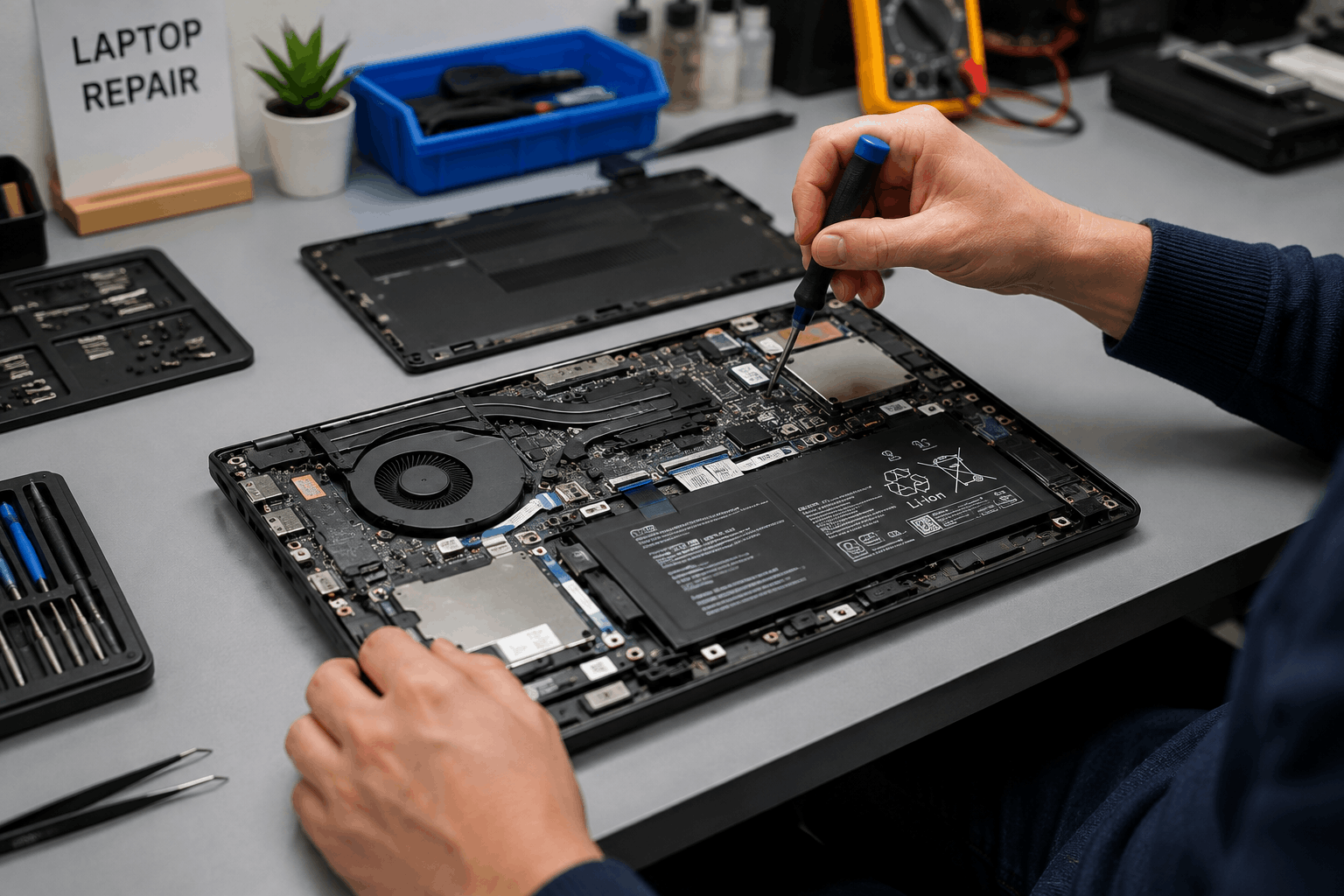
A loose charging port, cracked screen or overheating laptop can make a DIY repair look like a manageable weekend task. The trouble starts when a small handling mistake creates a fault that was not there before.
Fragile connectors get damaged during opening, the wrong screw ends up in the wrong position, components short during reassembly, and existing data or hardware problems become harder to diagnose than they were at the start. What looked like a contained job becomes a more expensive one.
AMT Electronics has worked through these complicated PC repairs in Melbourne. The consistent finding is that minor laptop faults often involve more than the visible symptom, and the gap between a manageable repair and a total hardware failure is frequently one careless step.
Focus: DIY laptop repairs can create additional hardware faults when users mishandle batteries, connectors, screws or liquid-damaged components.
Key Risk: A small mistake during disassembly or reassembly can affect the motherboard, display or power system.
Practical Consideration: AMT Electronics recommends assessing the original fault before attempting complex repairs, especially where data or internal components are involved.
Outcome: Knowing the limits of DIY work helps prevent avoidable damage and unnecessary repair costs.
Repairs That Carry More Risk Than They First Appear
Some laptop repairs involve delicate components, electrical connections or tightly integrated hardware where a simple replacement becomes complicated the moment a surrounding part is damaged during access.
Battery and Power Repairs
Laptop batteries require particular care. A damaged, swollen or incorrectly connected battery can create a serious electrical problem beyond the original fault.
Power-related issues can also involve:
- Charging ports and their connections.
- Internal battery connectors.
- Power management components.
- Motherboard circuits.
A laptop that has stopped charging does not automatically need a new battery. The charger, port, battery connection or internal charging circuit could each be responsible. Replacing the battery without diagnosing the actual cause may leave the real problem unresolved.
Display and Connector Repairs
Replacing a laptop screen may appear straightforward, yet the display cable and connector can be extremely delicate. Pulling a cable incorrectly or forcing a connector into place can damage the socket or the cable itself.
This carries particular weight in compact laptops where components sit close together. A screen problem can become a motherboard or connector repair if the replacement process goes wrong.
Protect Your Laptop From Costly Repair Mistakes
Why Modern Laptop Hardware Leaves Little Room for Error
Components are compact, connectors are delicate and screw lengths can vary significantly across a single device. The margin for error during disassembly and reassembly is smaller than it looks.
The Wrong Screw in the Wrong Position
Laptop manufacturers often use several screw sizes within the same device. Placing a longer screw where a shorter one belongs can put pressure on internal components or damage a board without any visible indication that something has gone wrong.
Keeping screws organised during disassembly reduces the chance of incorrect reassembly. It is more than a convenience.
Ribbon Cable Handling
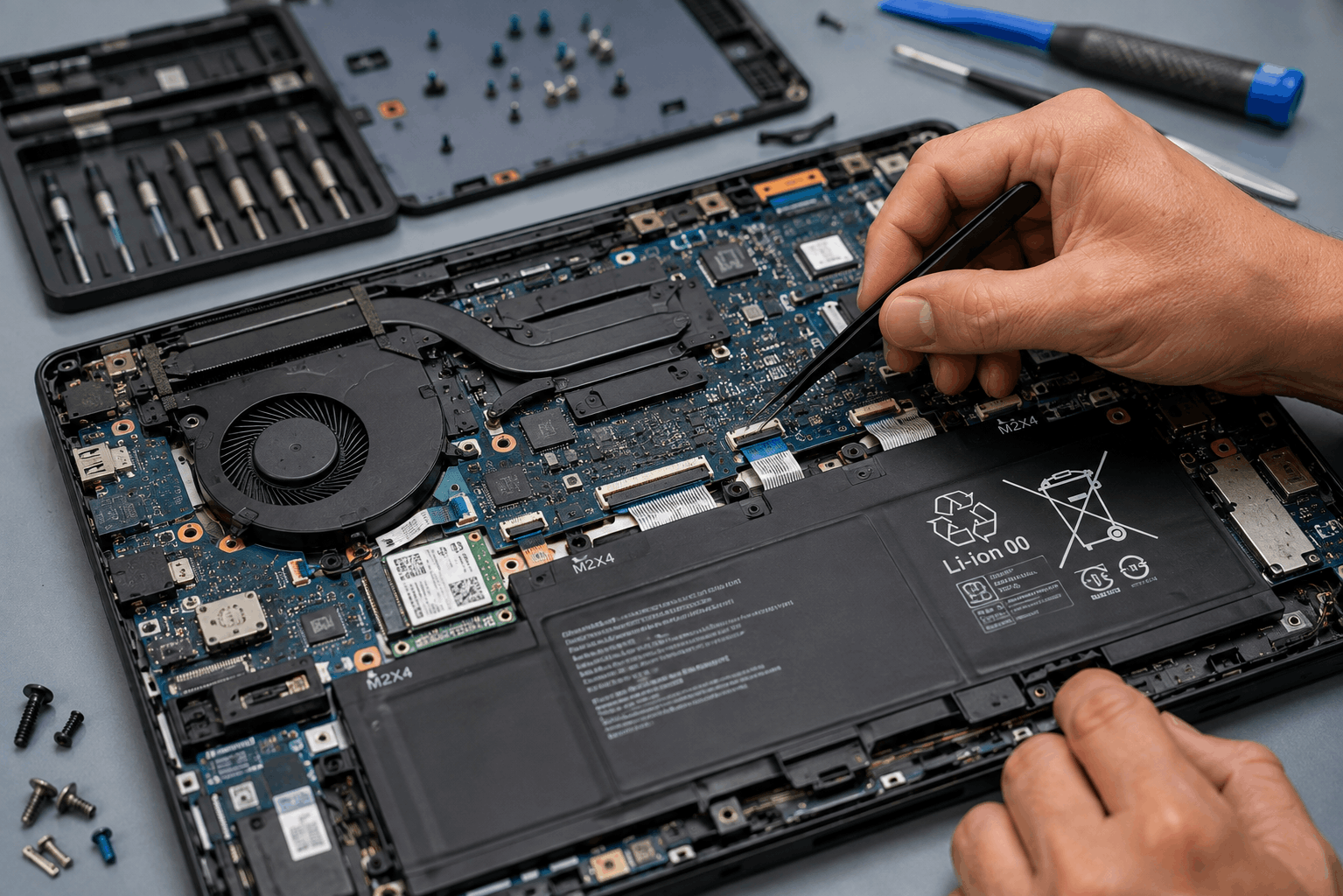
Ribbon cables connect keyboards, trackpads, displays and other internal assemblies. Many use small locking mechanisms that must be released before the cable is removed.
Pulling directly on a cable can damage the connector or its locking mechanism. Once that happens, replacing the original component may not resolve the problem, because the cable or its connector has become the fault.
When Cleaning or Maintenance Creates New Problems
Cleaning and basic maintenance can address some laptop issues, but careless internal cleaning introduces new faults. Fans, heatsinks, connectors and thermal materials all require specific handling.
1. Cooling System Cleaning
Dust covered fan and heatsink causing overheating. Moreover, rapid or unnecessary contact with delicate components during the process, or forcing the fan to spin rapidly with compressed air, can cause damage.
Before cleaning internally, turn off the laptop and handle it carefully. If cleaning does not solve the problem and the system still overheats, the problem could be the thermal paste, the fan not working, or some other hardware problem that cleaning alone won’t resolve.
2. Thermal Paste Application
Replacing thermal paste requires the heatsink to be removed and correctly reseated. Too much paste, poor contact or uneven pressure affects heat transfer in ways that are not immediately visible.
The symptom remains an overheating laptop, but the origin has shifted to incorrect reassembly rather than the original dust build-up. For users dealing with a broader computer repair situation involving desktop or laptop hardware, professional diagnosis can determine whether the fault comes from cooling, power, storage or another component entirely.
Liquid Damage and Why It Behaves Differently From Other Faults
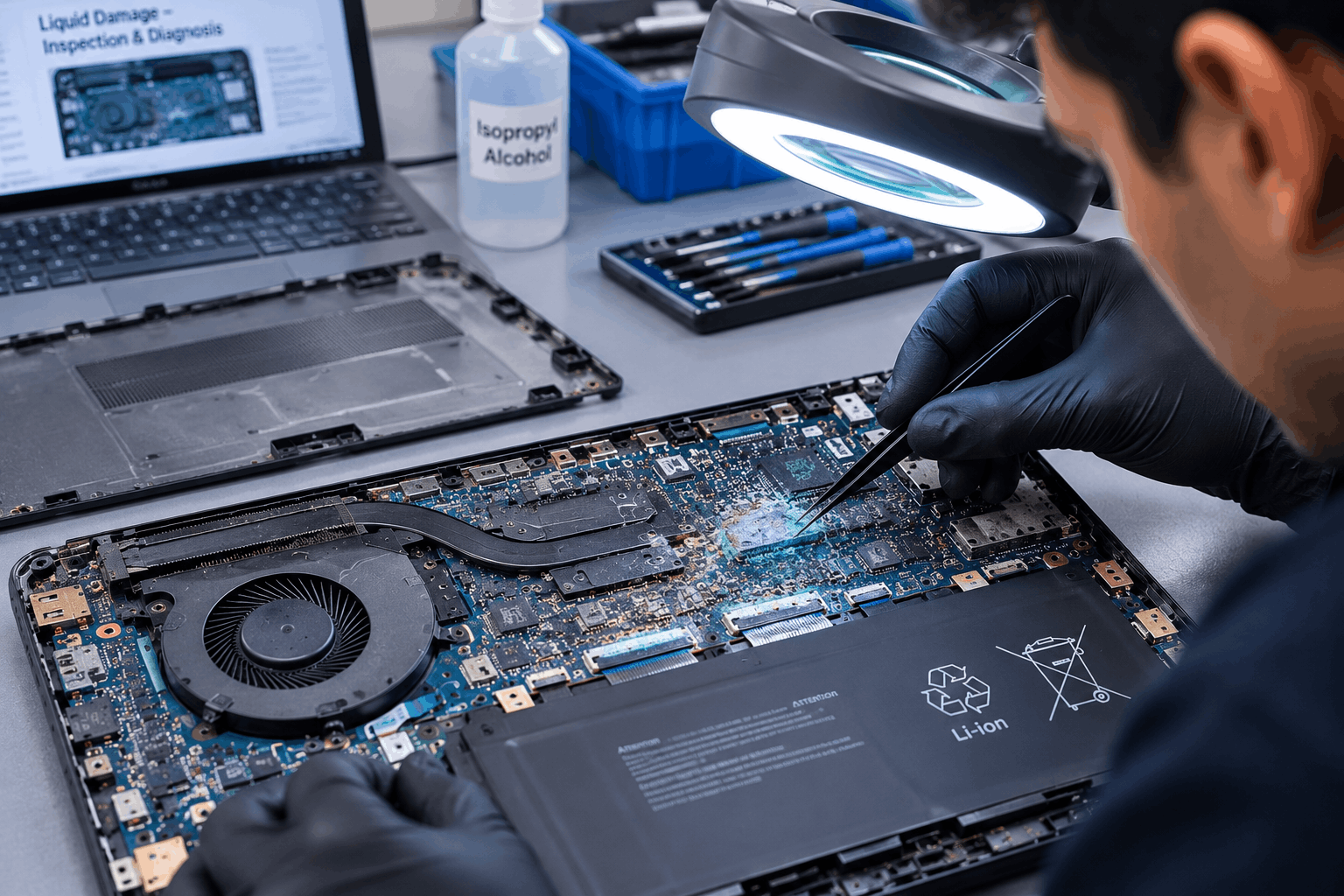
Liquid exposure creates a distinct type of laptop fault because visible moisture disappears while damage continues inside the device. Water, coffee and other liquids reach connectors, circuit boards and internal components that cannot be seen or dried from the outside.
The safest response is to avoid repeated power attempts and arrange an assessment as soon as practical.
What Develops After a Liquid Spill
Liquid can reach areas that are not visible from outside the laptop. After the surface appears dry, residue and corrosion continue affecting electrical connections.
Common signs include:
- The laptop shutting down without warning.
- The keyboard or trackpad behaving erratically.
- The display developed unusual visual symptoms.
- Charging stopped without an obvious cause.
- The laptop powered on briefly and then switched off.
Repeated testing after a spill introduces further electrical stress. If important files are stored on the device, protecting the data should take priority over attempting different fixes.
Why Surface Drying Does Not Address the Real Problem
Leaving a laptop open to air removes moisture from accessible surfaces. It does not address liquid that has reached internal components.
A liquid-damaged MacBook, for example, may require inspection of the logic board, connectors and affected assemblies before the extent of the damage becomes clear. MacBook water damage repair at a component level is more appropriate than a basic drying attempt, particularly where corrosion has had time to develop.
How DIY Repairs Can Compromise Your Data
A repair attempt can affect access to stored files when the fault involves storage, the motherboard or the power system. The risk increases when the device contains information that has not been backed up.
Repair and Data Recovery Are Separate Priorities
A laptop can have a hardware fault while its stored data remains intact. Continuing to attempt repairs without understanding the original failure can complicate data recovery later.
A laptop that will not start could have a fault with:
- The charger or charging circuit.
- The battery.
- The motherboard.
- The display.
- The storage device.
- Another internal connection.
These faults require different approaches. Replacing an unrelated component may spend money while leaving the original problem unresolved and data access further at risk.
Create a Backup Before Opening a Working Laptop
If the laptop functions normally and an internal repair is being considered, create a current backup before opening the device. This provides a layer of protection if something goes wrong during disassembly and gives a technician a clearer starting point if a more serious fault develops.
If the device has already stopped working, avoid repeatedly switching it on to check whether it has recovered. The next step should follow from the type of failure and the importance of the stored information.
Recognising When to Stop and Seek Professional Assessment
The point at which a DIY repair should stop is not always obvious. If the repair involves electrical damage, liquid exposure, a swollen battery, motherboard work or unrecovered data, continuing without appropriate equipment and experience adds risk that is difficult to quantify until something else fails.
|
Risk Level |
Sensible Action |
Problem |
|---|---|---|
|
Loose external component |
Low |
Basic troubleshooting may be suitable. |
|
RAM or storage replacement |
Moderate |
Check compatibility and installation requirements. |
|
Broken display connector |
High |
Consider professional assessment. |
|
Swollen battery |
High |
Stop using the laptop and seek assistance. |
|
Liquid exposure |
High |
Avoid repeated power attempts and arrange assessment. |
|
Motherboard fault |
Very high |
Use a specialist repair service. |
|
Important data at risk |
Very high |
Prioritise data preservation before further repair. |
Signs the Repair Has Gone Beyond a Component Replacement
Stop and seek professional input if you encounter:
- A damaged connector or locking clip.
- A screw that does not fit its original position.
- Burning smells or visible component damage.
- A swollen or damaged battery.
- Liquid residue inside the device.
- A laptop that behaves differently after reassembly.
- A repair that requires board-level soldering you cannot perform safely.
Repair or Replace: Making the Right Call on an Older Laptop
Repair makes sense when the underlying hardware still meets your needs and the faulty component can be replaced at a reasonable cost. An older laptop may still provide useful service if its processor, memory and storage match current requirements.
Replacement becomes more practical when several components are ageing simultaneously.
Consider:
- The age and overall condition of the laptop.
- Availability of compatible replacement parts.
- Expected repair cost relative to replacement value.
- Battery condition and remaining capacity.
- Storage capacity and drive health.
- Current performance requirements.
- Whether the laptop supports the software you rely on.
The same thinking applies to desktop systems. Fixing personal computer hardware at a component level can be worthwhile for a single fault. While a system with multiple ageing parts may make a better case for transitioning to pre-owned desktop computers that offer improved performance without the full cost of new hardware.
Get Reliable Advice For Your Laptop Repair
Questions to Raise Before Approving Any Repair Work
Before approving repair work, ask for a clear explanation of the fault and the proposed solution. The answers should cover what needs attention and whether additional issues may emerge once the device is opened and tested.
Before You Approve: Four Diagnostic Questions
1. What is causing the problem?
A visible symptom does not always identify the failed component. The diagnosis should go beyond the surface fault.
2. Which part needs repair or replacement?
This helps you understand what the repair cost covers and whether the proposed solution addresses the actual cause.
3. Is my data currently safe?
This matters particularly when the laptop will not boot or has suffered liquid damage. Data preservation and hardware repair are not the same priority.
4. Does repair make financial sense for this laptop?
Factor in the device’s age, condition and expected future use before committing to a repair cost.
For display faults that extend beyond a laptop screen, similar diagnostic thinking applies to monitor repair. The visible symptom may be only one part of the underlying hardware problem.
Conclusion
DIY laptop repair works for straightforward tasks when the hardware is understood and the correct tools are available. The risk compounds quickly once a repair involves batteries, liquid exposure, delicate connectors, motherboard components or unrecovered data.
Recognising that limit early is what keeps a contained fault from becoming a full hardware replacement. AMT Electronics brings nearly three decades of repair experience to laptops and other electronic devices across Melbourne. Get in touch with us today for proper diagnosis or accurate information about your PC’s repair condition.
FAQs
Will opening a laptop void its warranty?
This depends on the manufacturer, the device and the type of intervention. Warranty coverage can differ depending on the fault and the service performed. Before opening a covered device, review the applicable warranty terms and consider whether professional assessment is the more appropriate first step.
Can I replace a swollen laptop battery at home safely?
A swollen battery is a safety issue, not just a normal part replacement. Do not press, puncture or keep using a damaged battery. If the battery is visibly expanded, stop using the laptop and get appropriate technical help before doing any further repair.
Should I turn on a laptop after spilling liquid on it?
Never try to power on after a liquid spill. Moisture causes electrical faults inside the device and the residue continues to affect parts even after the visible liquid is gone. Have it checked out before you do anything else to the laptop.
Why can a DIY screen replacement make a laptop behave differently?
A screen replacement includes the display cables, connectors and surrounding components. If a cable is damaged, or incorrectly seated or trapped during reassembly, then problems can occur that are not related to the original display fault. Ensure the parts are compatible and the connections fit properly before continuing testing.